A KPI belongs to the whole recurring series, not just the occurrence where you added it. One-off meetings don’t have KPIs. If you’re not sure what to track, start with our guide to which meeting KPIs to track.
Add a KPI on the web
- Open any meeting in the recurring series.
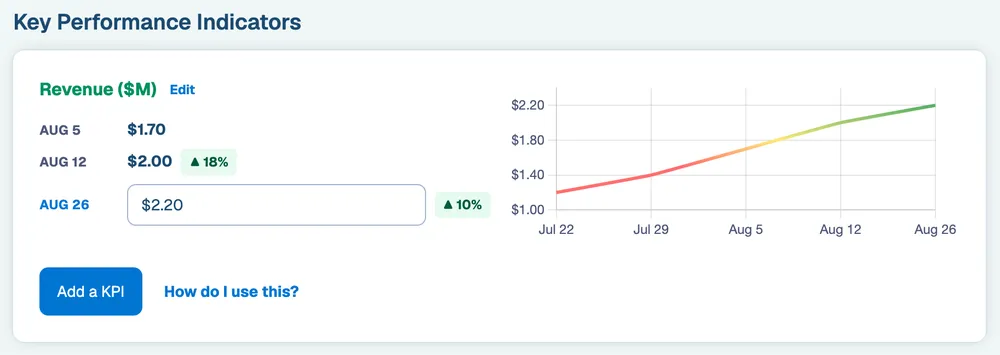
- Scroll to Key Performance Indicators, below your action items. Until you add your own, this section shows a sample chart.
- Click Add a KPI.
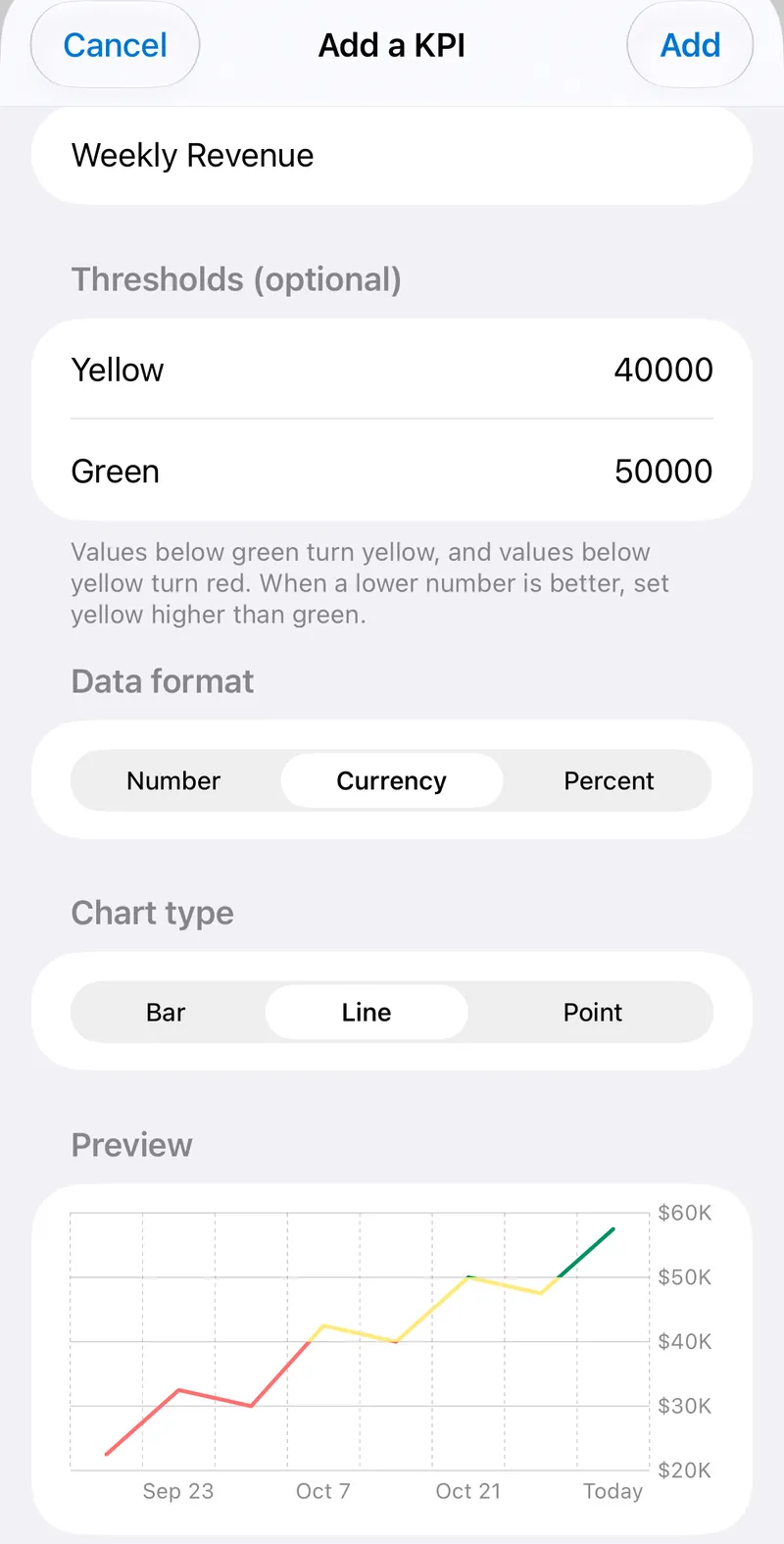
- Give it a name, such as “Weekly Revenue.”
- Choose a data format (Number, Currency or Percent) and a chart type (Bar, Line or Point). The preview updates as you go.
- Click Add a KPI to save it.
Add a KPI in the iPhone, iPad or Android app
- Open any meeting in the recurring series.
- Go to the meeting’s KPIs section.
- Tap Add a KPI, fill in the same details as on the web, and tap Add.
On iPhone and iPad, you’ll need version 2.3.0 or later. KPIs you add on one device show up on the others.
Log a value
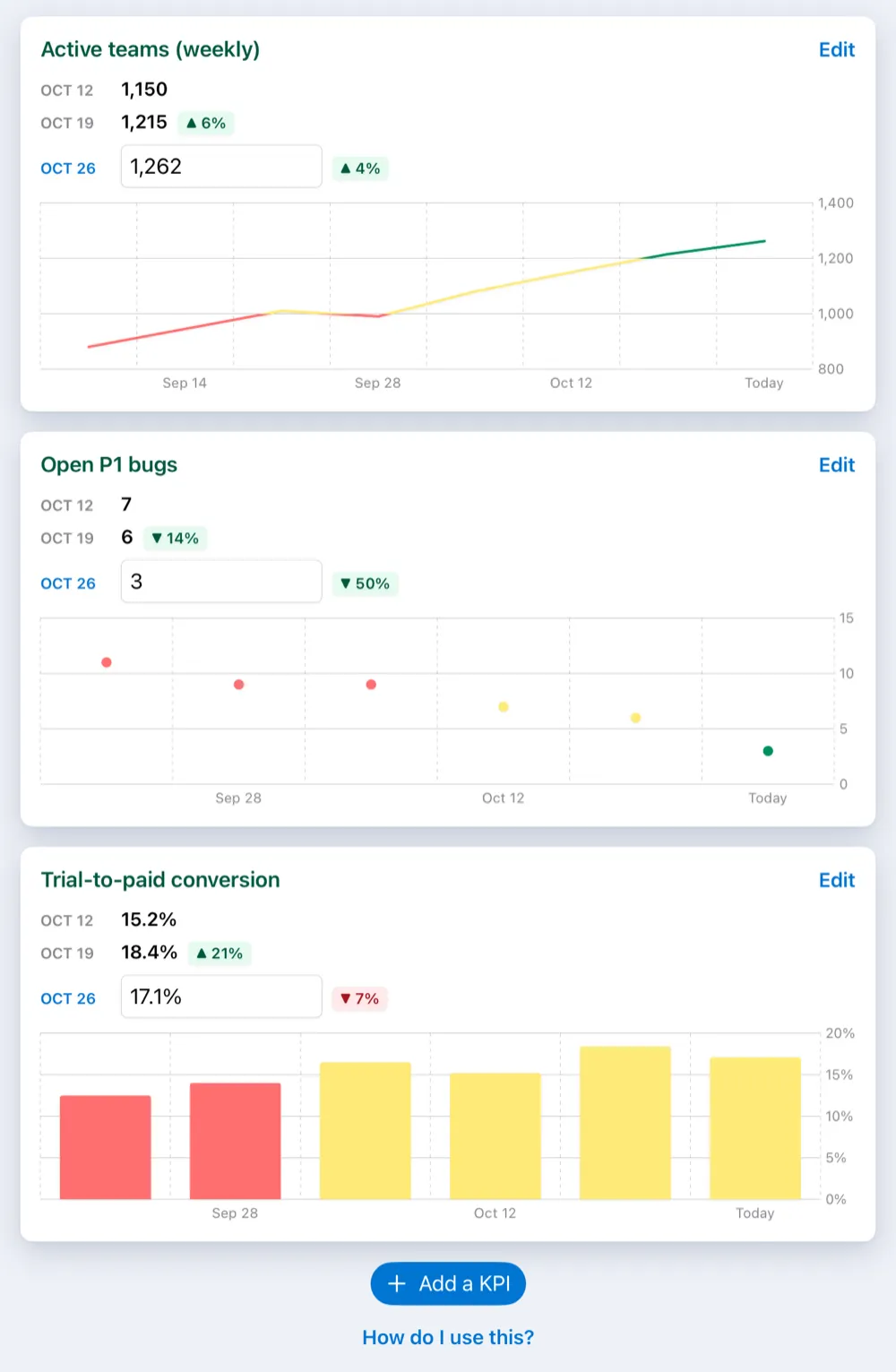
Open the current meeting and enter the latest number on the KPI. The chart fills in as you log values, meeting by meeting, so you can see the trend across the whole series.
Set thresholds
Thresholds are optional, and you can set them when you add or edit a KPI. Use them when you want off-target numbers to stand out:
- Values below the green threshold turn yellow.
- Values below the yellow threshold turn red.
When a lower number is better, such as support tickets or days to close, set yellow higher than green.
Edit or delete a KPI
Click or tap Edit on the KPI to change its name, thresholds, data format or chart type. To remove it, choose Delete KPI from the same screen. Deleting a KPI also deletes every value logged for it, on every occurrence of the meeting.