Taking notes in Less Meeting should be simple so you can focus on, well, the meeting.
To help you out, check out the following keyboard shortcuts while taking notes in a meeting.
Saving/Editing Notes
Type your note and press Enter to save it.
Click a saved note to edit it.
Decisions
Create a decision by typing “D:”, like this:

Action Items
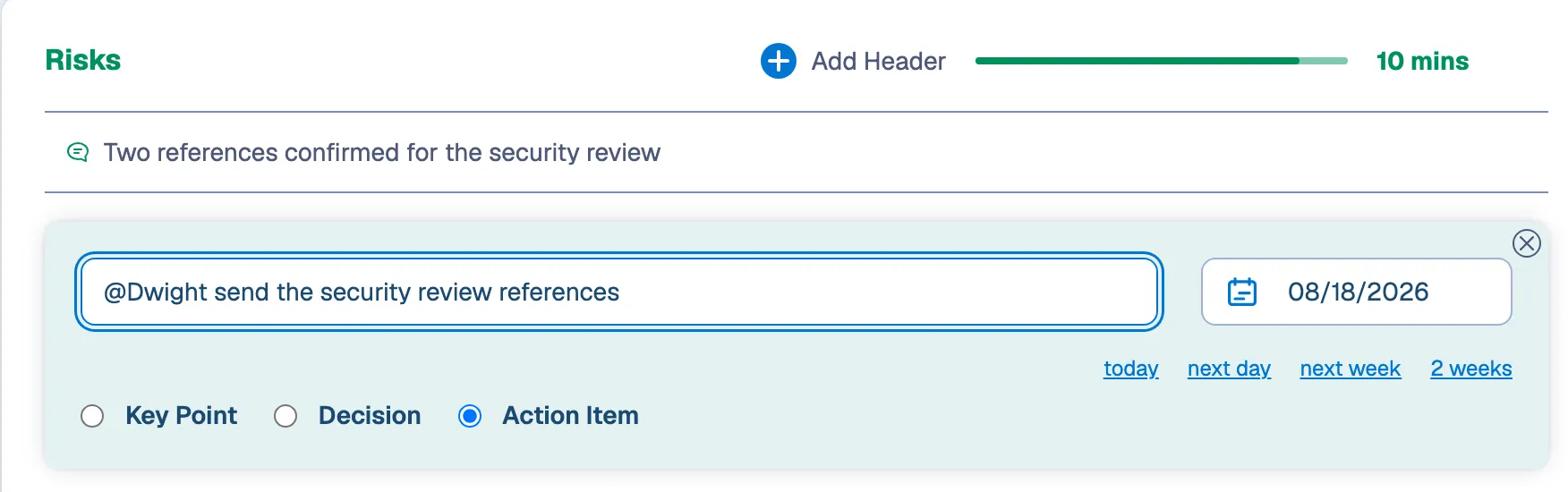
Create action items by typing “@”, like this:
Indenting Notes
Indent your notes to create logical outlines and structures with Tab to indent, or Shift+Tab to unindent. Any sub-notes indented beneath a note stay grouped with it.
Moving the Note Entry Box
Use your Up/Down and Left/Right arrow keys to move the note entry box to a different section of notes.
This is especially helpful if you need to add some details back to a prior section of notes.
Moving Notes
Decided something is out of order? Click and hold your mouse over the note you want to move, then drag and drop it to rearrange your minutes however you like.
Note: Any subnotes will get moved too