Managing Action Items
Know how to take awesome notes? Check.
Got your calendar synced up with Less Meeting? Check.
Now it’s time to show you how to sync your Action Items from Less Meeting so you can make your meetings actionable.
Syncing Tasks to Outlook or Microsoft 365
For Outlook and Microsoft 365 users, Less Meeting creates a task for each action item assigned to you, with the text and due date set. Open your Applications settings, go to the Microsoft 365 section, and click Connect on the Tasks row (this is separate from the Calendar connection). After that, tasks appear automatically once you close a meeting.
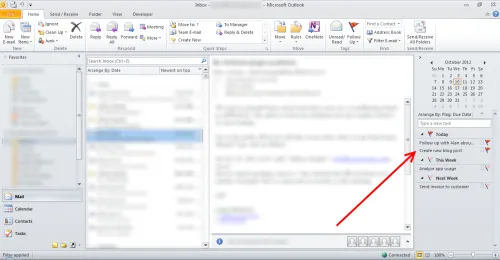
When a task is marked complete in Outlook it’s marked complete in Less Meeting too, and due-date changes sync both ways.
Syncing Tasks to Gmail or Google Workspace
Google Tasks works the same way. In your Applications settings, go to the Google Workspace section and click Connect on the Tasks row.
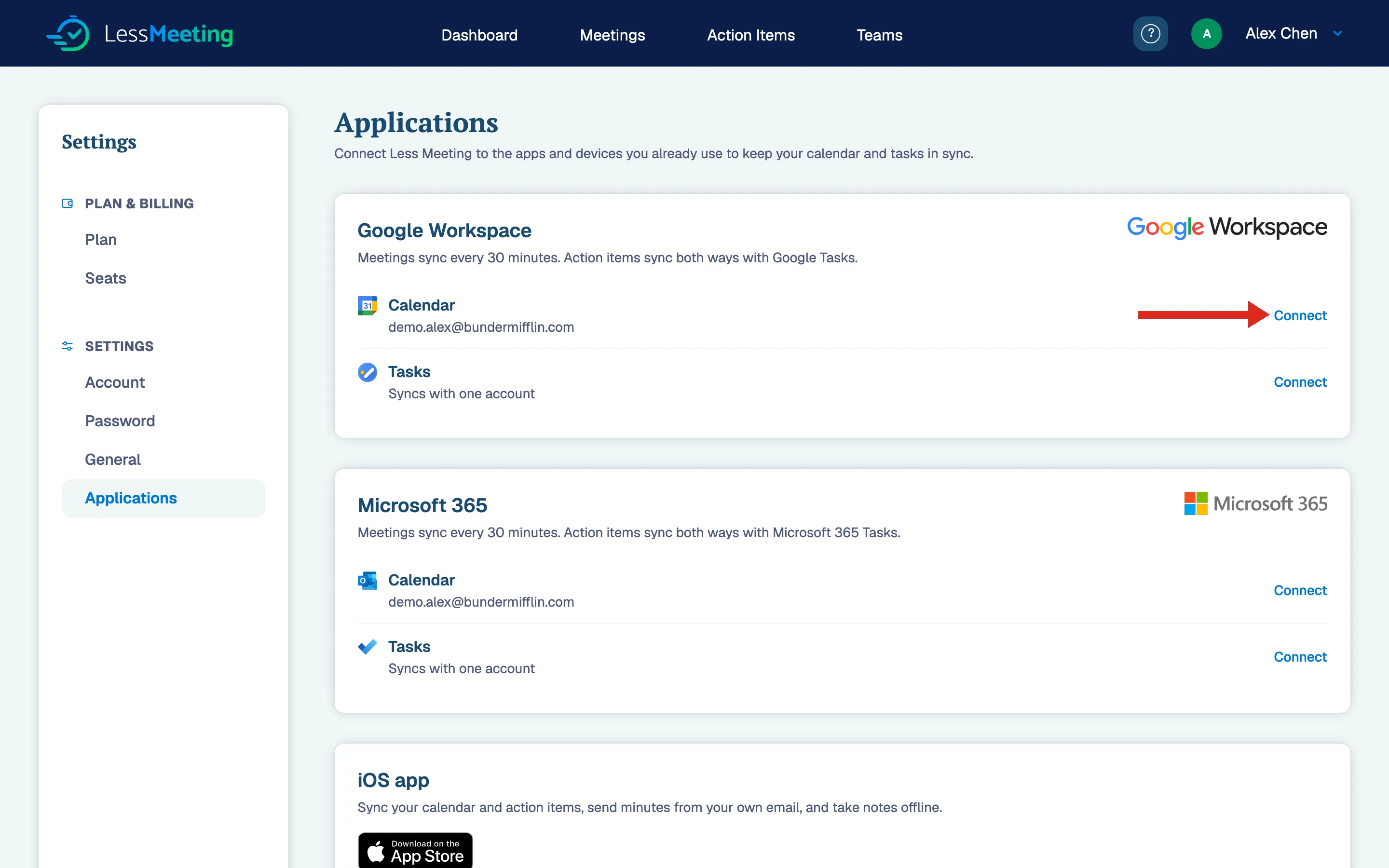
Once connected, your action items sync to Google Tasks after you close a meeting.
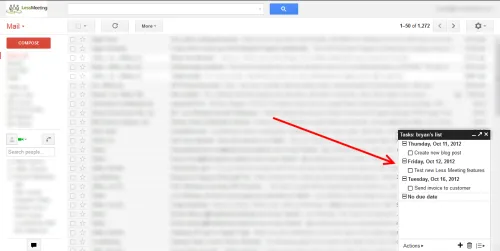
When a task is marked complete in Google it’s marked complete in Less Meeting too, and due-date changes sync both ways.
Through the Website
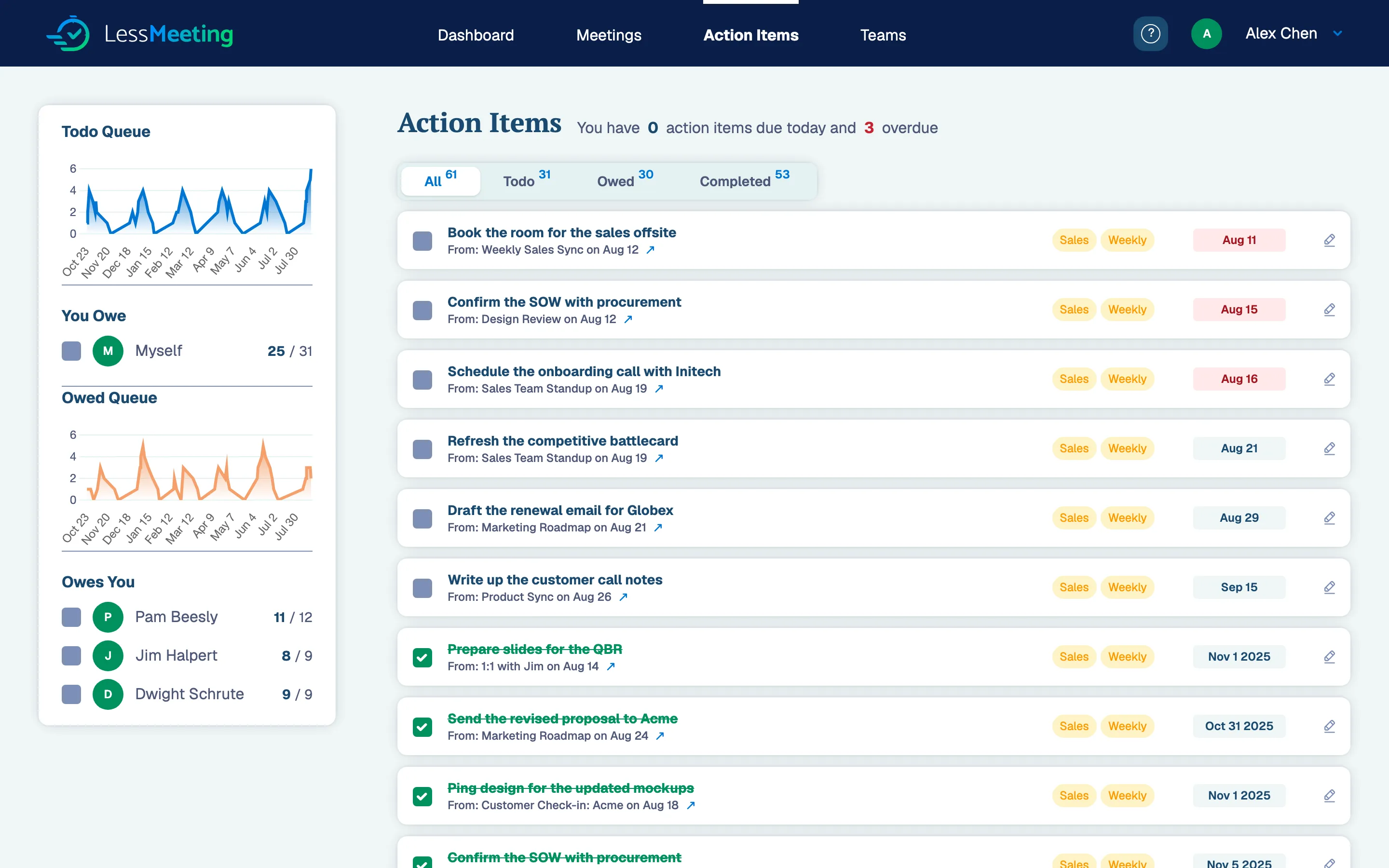
Action items can also be managed through the Less Meeting website by clicking the “Action Items” link on the top menu.
This shows you both the action items that you owe as well as the action items owed to you. Each item links to its meeting page, so you can see the context it was created in.