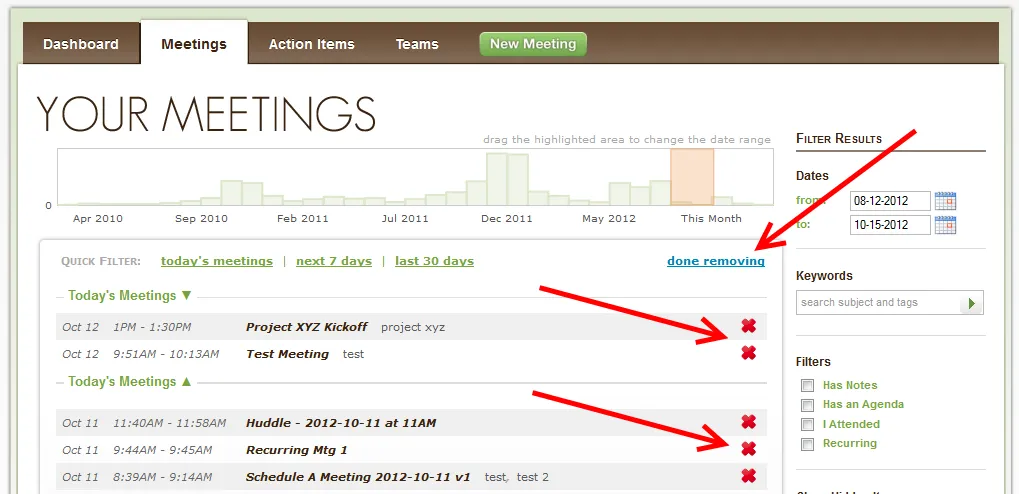
There are three ways to delete a meeting.
1. Delete from a Synced Calendar
Meetings synchronized from your calendar (Outlook, Gmail/Google Workspace, iPhone, iPad, Android, etc) will automatically be removed from Less Meeting when they are cancelled or you declined through your calendar.
2. Delete from the Mobile App
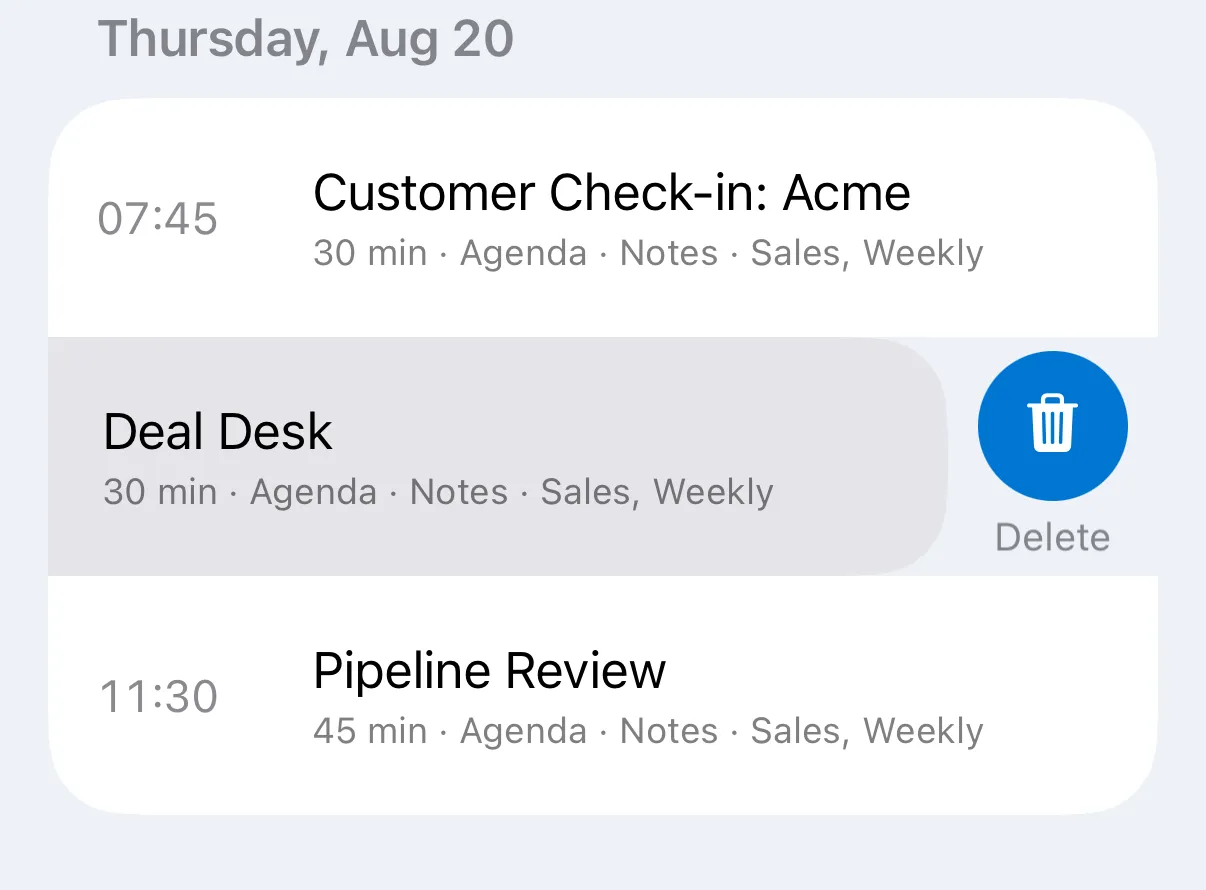
On iPhone or iPad, open the Meetings tab, swipe left on the meeting you want to remove, and tap Delete.
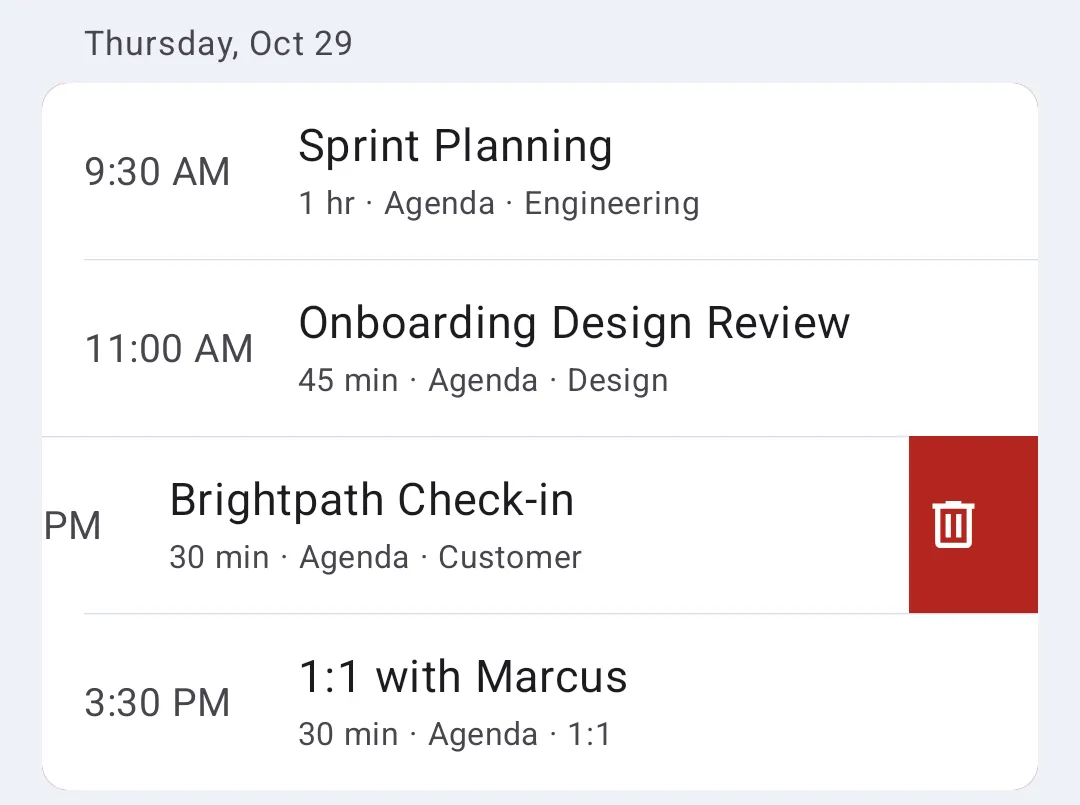
On Android, open the Meetings tab and swipe the meeting all the way to the left. It’s deleted as soon as you let go.
3. Delete from Meetings Page on Less Meeting Web
Alternatively, you can delete/remove meetings from your Meetings page. Follow the steps below. (Note: This will not remove the meeting from your calendar outside of Less Meeting.)
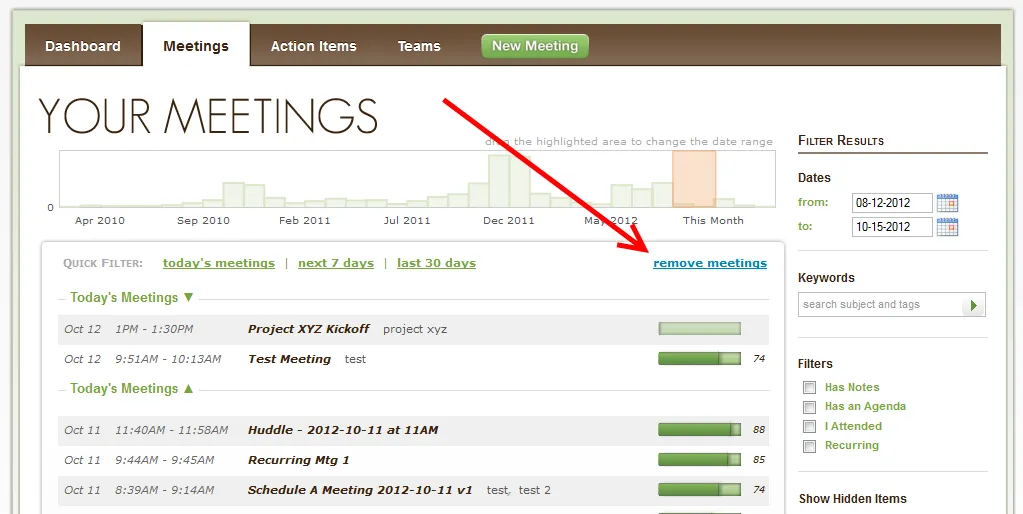
- Click the remove meetings link.
- Click the red X next to the meeting(s) that you want to remove. When finished, click the done removing link.