Need to record the audio from your next meeting?
Here’s how to use the Less Meeting mobile app to take great notes during the meeting and fill in any details you missed with the audio recording afterward.
1. Turn on Recording
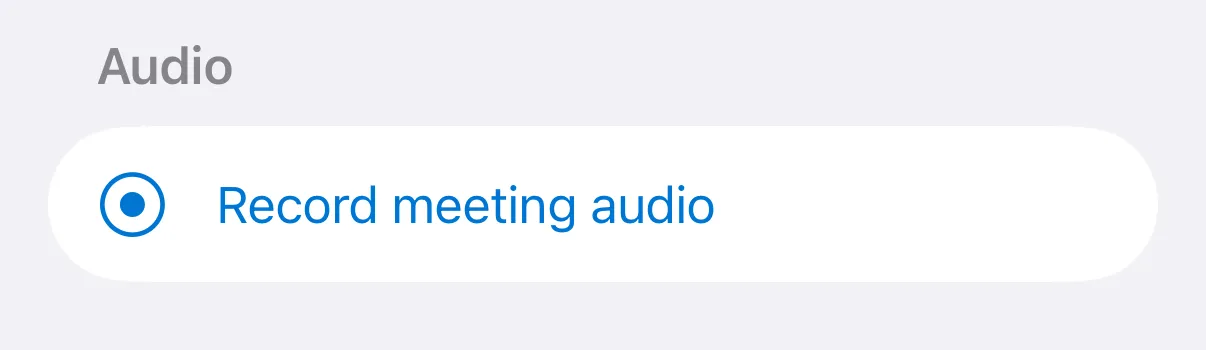
Open your meeting, go to the More tab, and under Audio tap Record meeting audio. Everything is automatic from there. Tap it again to stop.
Bonus Tip 1: Taking a 5 minute break during the meeting? Turn recording on and off as many times as you need. On iPhone and iPad, Less Meeting merges all the clips from the same meeting into one. On Android, each clip is listed in the meeting’s Audio section.
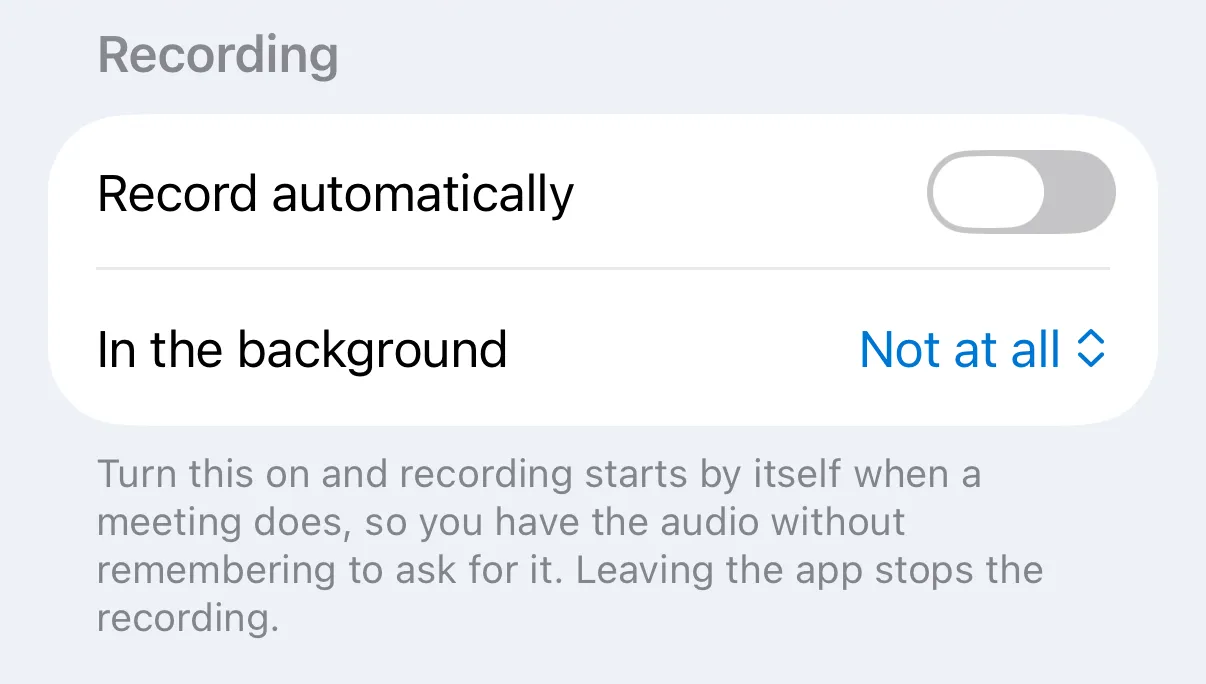
Bonus Tip 2: Record all your meetings? Open the Settings tab and turn on Record automatically so recording starts by itself whenever a meeting does.
2. Play Back Recordings, Synced With Your Notes
There are plenty of apps that record audio, but none sync your notes with the audio the way the Less Meeting app does. Tap Play back with notes in the meeting’s Audio section, and:
- Watch notes highlight in sync with the audio playback scrubber timeline
- Tap any note to jump the playback straight to the moment that note was taken
It makes filling in the gaps where you missed a detail incredibly easy.
3. Deleting Audio Clips
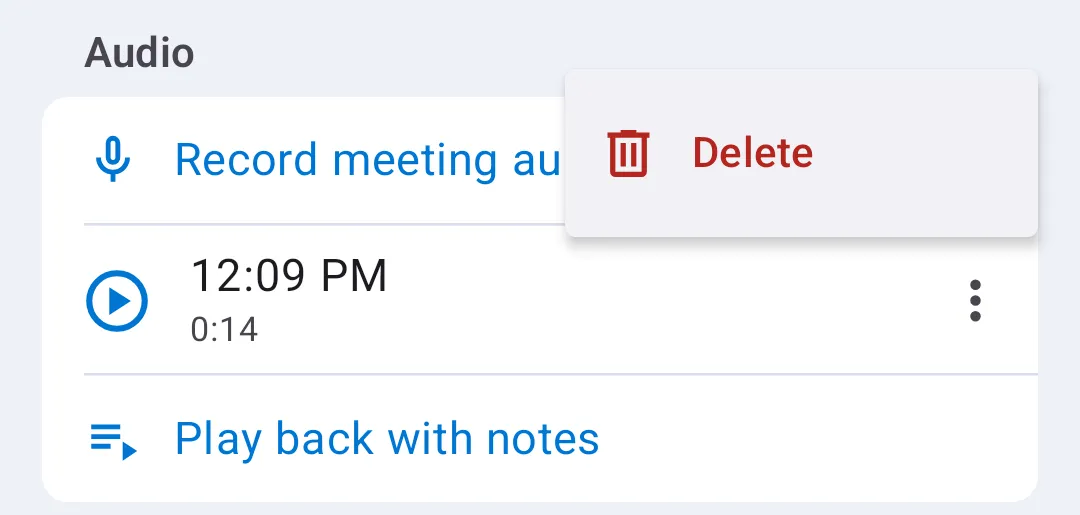
Need to delete a clip? In the meeting’s Audio section, swipe left on the clip and tap Delete. On Android, tap the ⋮ menu next to the clip, then tap Delete. Deleting the whole meeting removes its audio too.
4. Adjust Background Timing
When you switch to another app, Less Meeting limits how long it keeps recording so you don’t accidentally record the rest of your day and drain your battery.
To change how long recording continues in the background, open the Settings tab, and under Recording set In the background to the length you want.