Steps to Link Your iPhone/iPad Calendar to Less Meeting
- Open the Settings tab in the Less Meeting app.
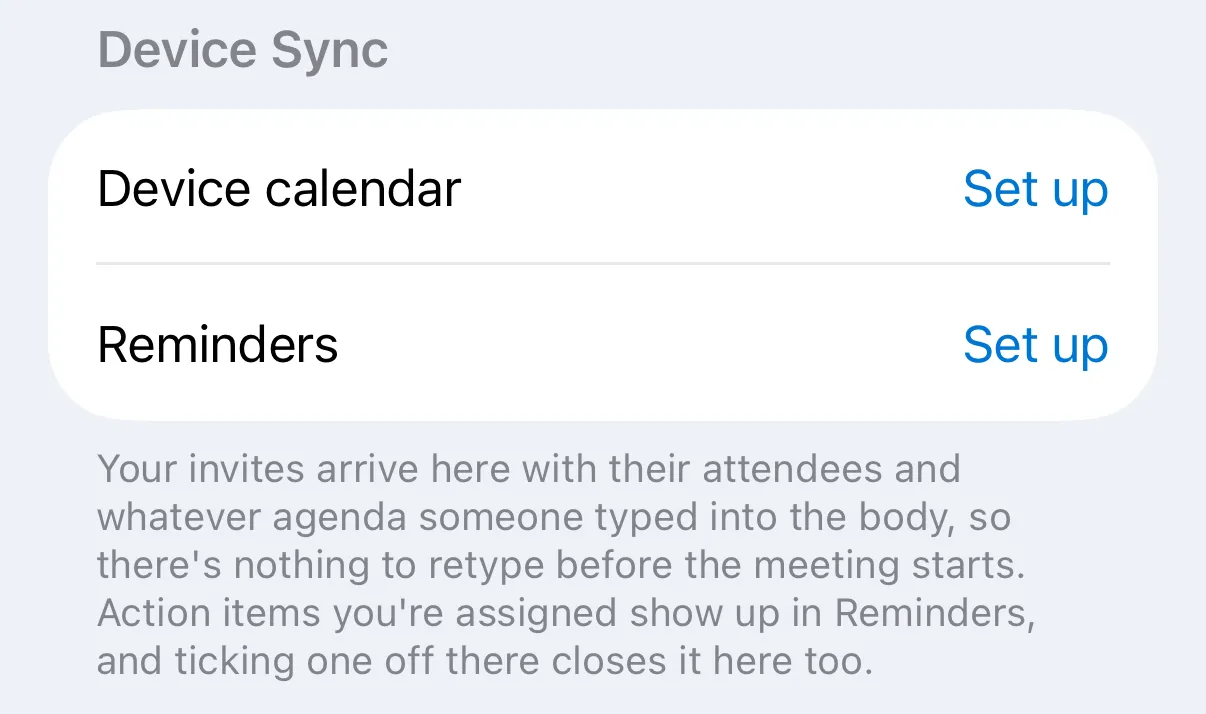
- Under Device Sync, tap Set up next to Device calendar.
- On the Import your calendar screen, tap Continue, then allow Less Meeting to access your calendar when iOS asks.
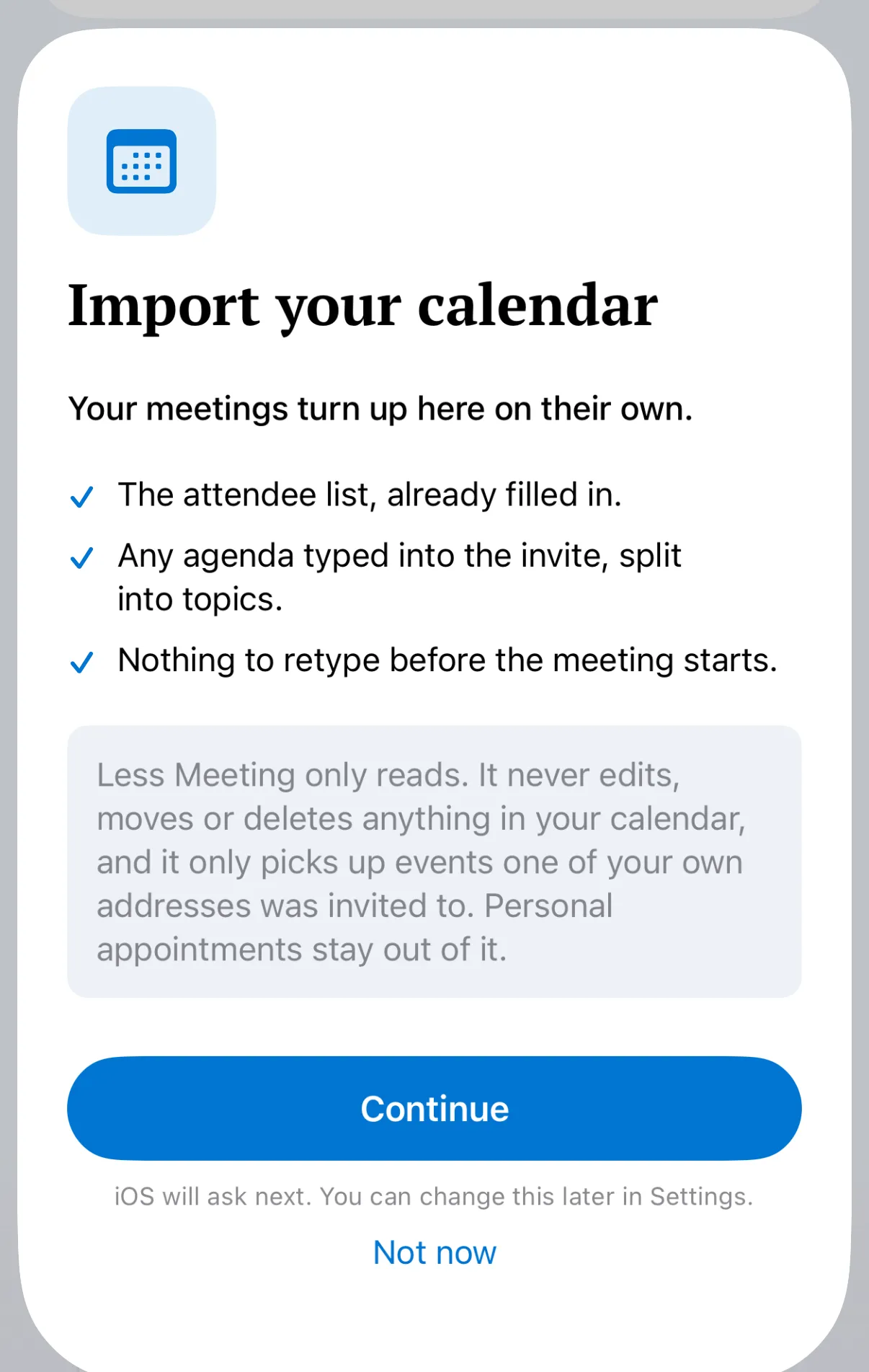
Less Meeting only reads your calendar. It picks up events one of your own addresses was invited to and leaves everything else alone. Over the next few minutes your recent and upcoming meetings start appearing on the Meetings tab.
Add Agendas to Less Meeting from Your Calendar
Once your calendar is linked, you can add your agendas and tags right from the calendar invite.
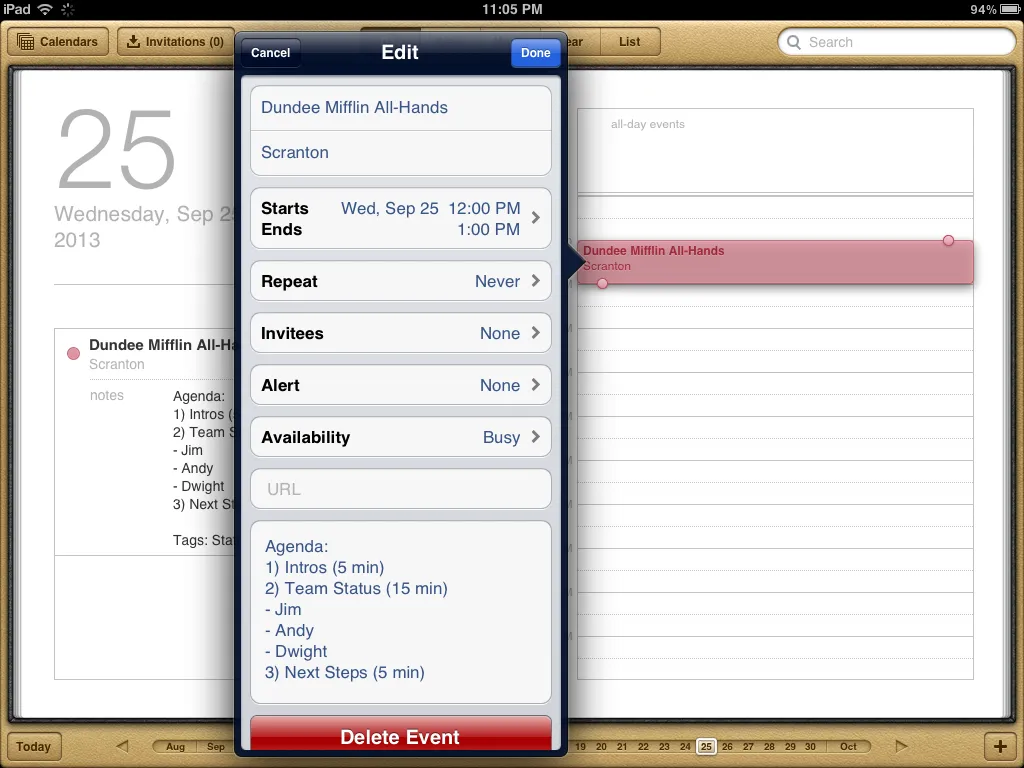
Use the following format:
Agenda:
1) Agenda Item 1 (# min)
- sub topic
- another sub topic
2) Agenda Item 2 (# min)
3) etc...
Tags: Status Meeting, Project XYZ, etc...Sub topics, # of minutes, and tags are all optional. When you’re done, your invite might look like this:
If you’re still not seeing your meetings sync you can get more help here.
On an Android phone or tablet? Follow the Android calendar steps instead.