The best way to get familiar with taking notes in Less Meeting is to run the interactive tutorial. If you’ve already taken it or want to learn about something specific, here’s what this article covers:
- Open the Meeting
- View the Invite Details
- Start the Meeting Timer
- Take Attendance
- Take Meeting Notes
- Create Action Items
- Create Decisions
- Edit Agenda Items
- Add Items to the Parking Lot
- Multiple Note Takers
- After the Meeting
Open the Meeting
To open an upcoming meeting, log in to the Less Meeting website. Today’s meetings are listed on the dashboard; for any other day, click Meetings at the top to see all of your upcoming and past meetings. If a meeting doesn’t have an agenda yet, you’ll be prompted to create one when you open it.
View the Invite Details
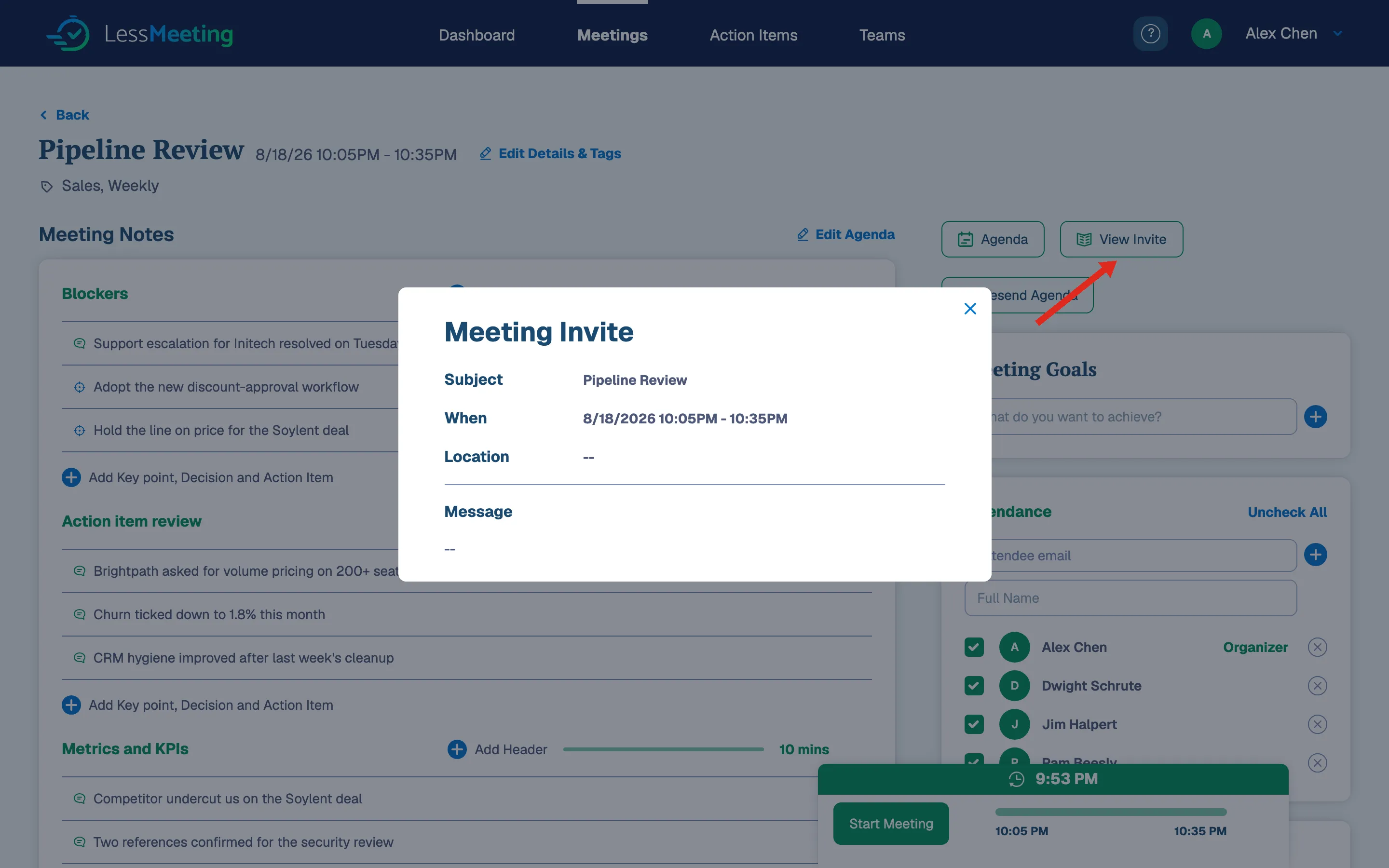
It’s often helpful to see the original invitation, for example to grab the web-conference link or dial-in number. Click the View Invite button near the meeting title to open it.
Start the Meeting Timer
When you’re ready, click the Start Meeting button in the bar at the bottom of the screen.
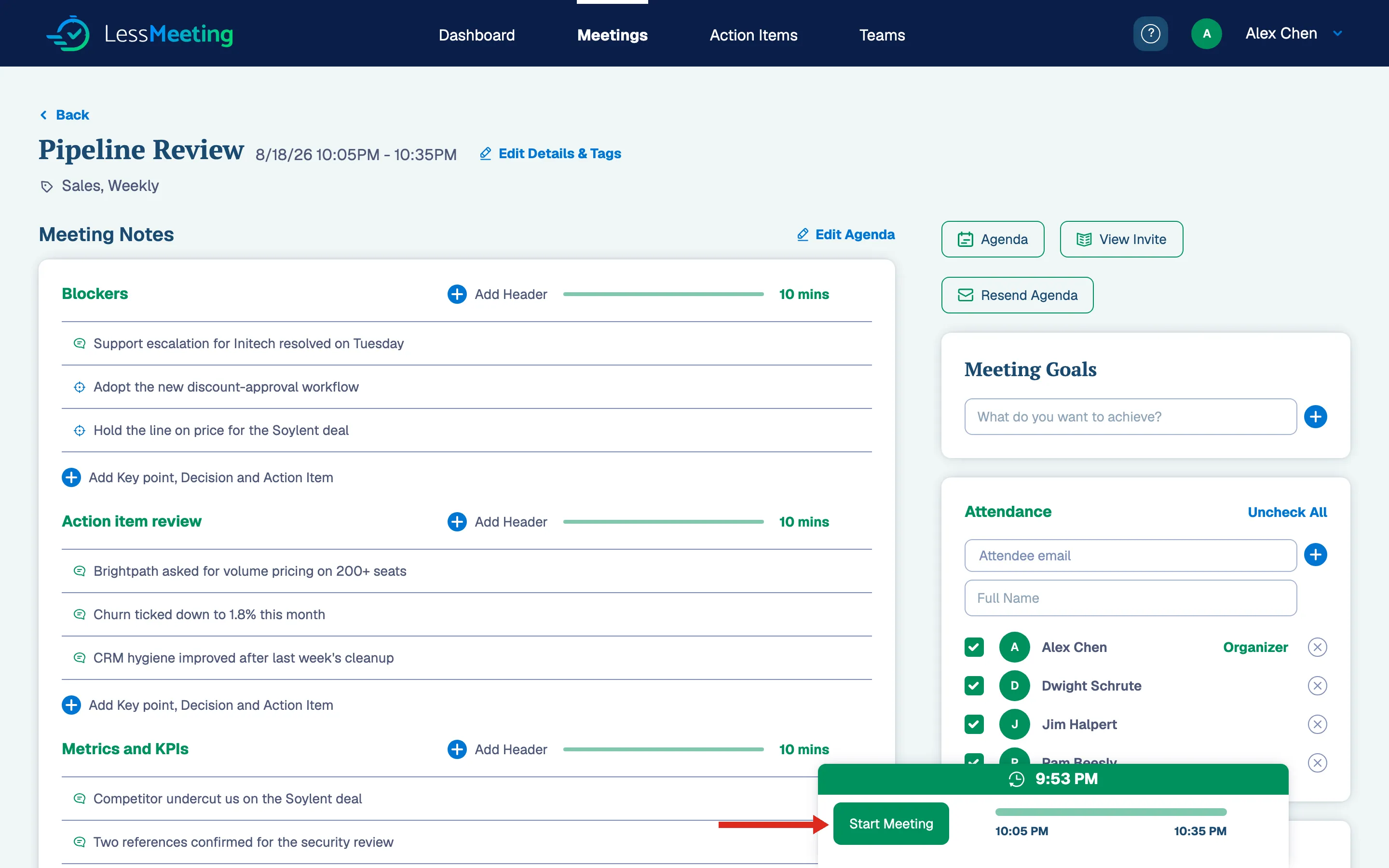
Once started, that bar tracks the current time, how much time is left, and overall progress. If you start typing notes before starting the meeting, Less Meeting will prompt you to start it.
Take Attendance
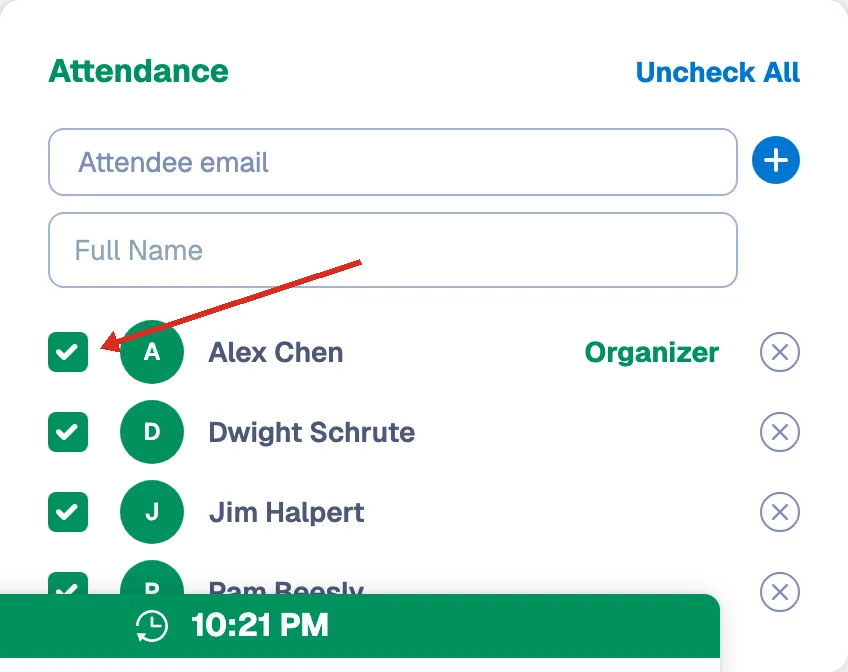
Attendees appear on the right of the screen with checkboxes, so you can capture who showed up. The list shows everyone invited, along with whether each person accepted or declined the invitation. For recurring meetings, it also shows each person’s attendance history. A field at the top lets you add someone who wasn’t on the original invite.
Take Meeting Notes
Notes are taken in a bulleted, nested structure under each agenda item. Type a note in the textbox under an agenda item and press Enter to save it and move to the next line. Press Tab before saving to nest a note under the one above it, and Shift-Tab to outdent.
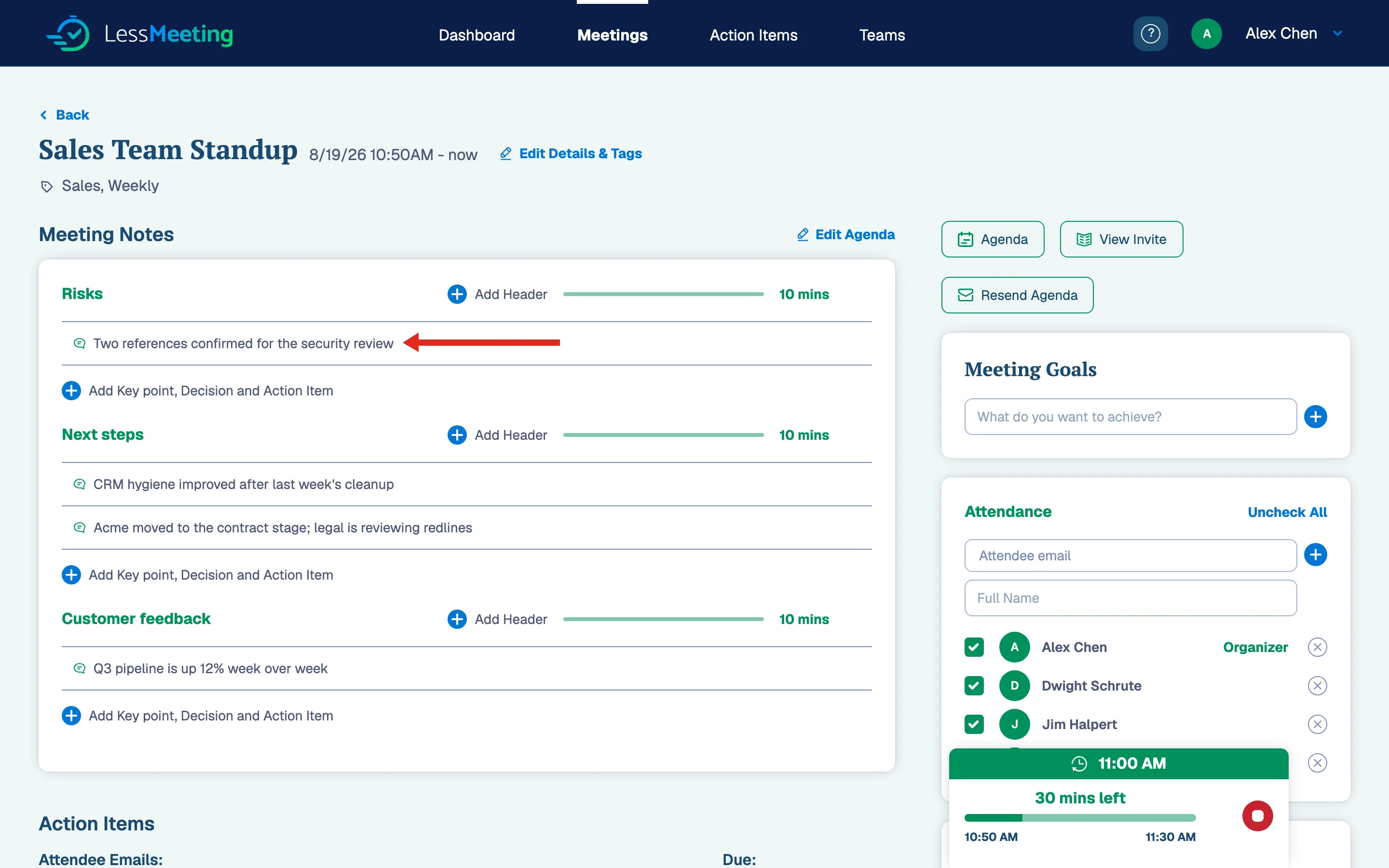
To edit a saved note, click it to switch back into edit mode, then press Enter to save. Hover over a note to indent or outdent it, turn it into a sub-note or sub-agenda item, or delete it (deleting a note also removes any notes nested under it). You can also drag and drop a note to rearrange it, including onto a different agenda item.
Create Action Items
Use action items to assign follow-ups to attendees. Inside a note, click the Action Item option beneath the textbox or type @ and start typing a person’s name and pick them from the suggestions. Add the task text and a due date, then save. Assign one item to several people by typing @ before each name (for example, “@Joe @Pete Follow up on the budget”). You can also add action items from the bottom of the meeting page, which is handy for follow-ups that don’t belong to a specific agenda item.
Action items show up in the daily digest email if you have it turned on, including a note when items owed to you are completed.
Create Decisions
To capture a decision, click the Decision option beneath the note textbox or type D: at the start of the note. Decisions are highlighted and bolded in the notes so they stand out.
Edit Agenda Items
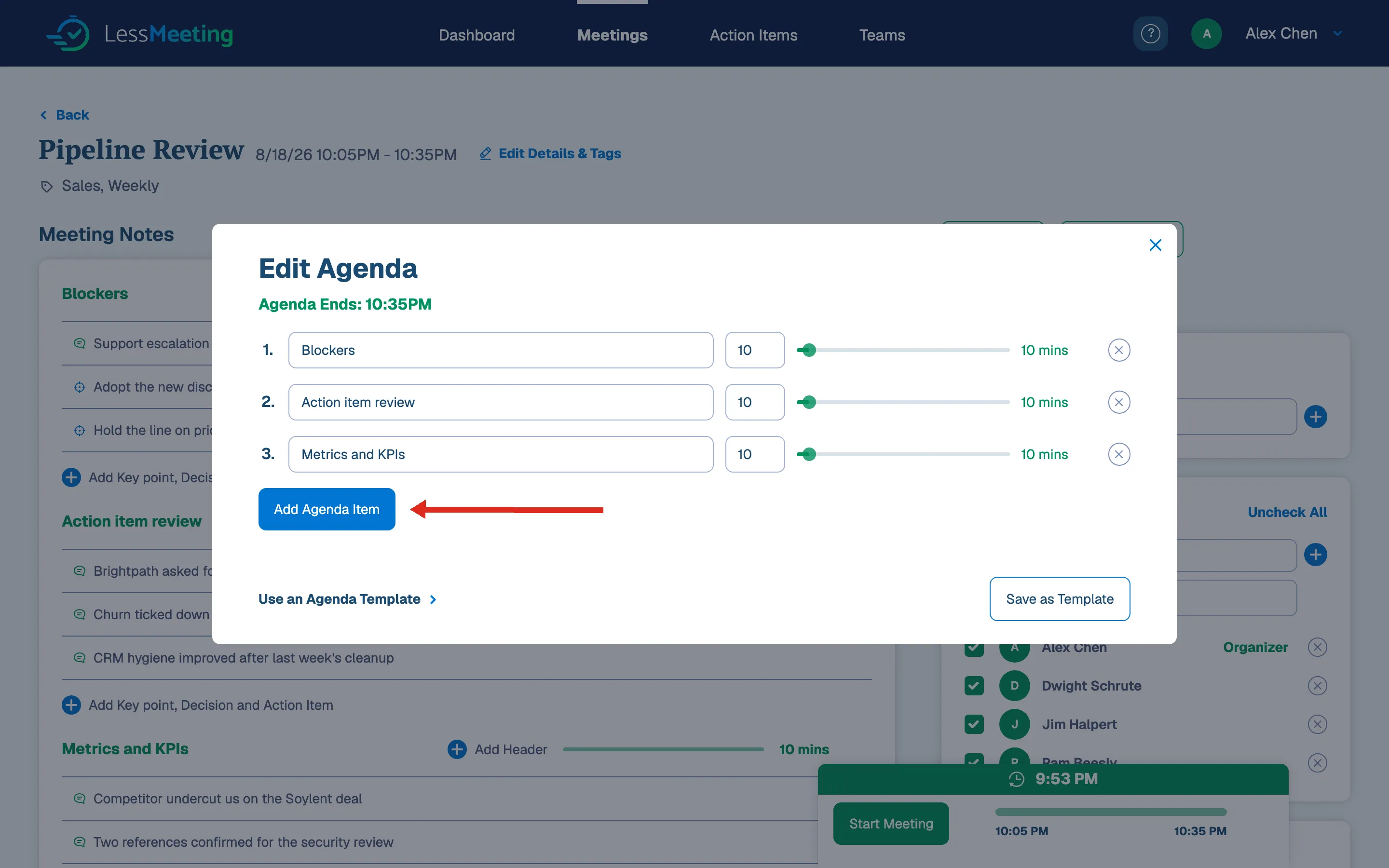
Click Edit Agenda at the top of the notes section to add, remove, reorder, or re-time agenda items.
Add Items to the Parking Lot
For topics that come up but aren’t on the agenda, use the parking lot on the right, below attendance. Type an item and press Enter to add it; click an item to edit it, or hover and use the delete control to remove it. If you add a parking-lot item to a recurring meeting, you’ll be prompted to add it to the agenda next time.
Multiple Note Takers
Several people can take notes at once as long as each has a Less Meeting account. Notes update in real time on everyone’s screen, much like a shared doc.
After the Meeting
When the meeting is done, click End Meeting in the bottom bar. You can email the minutes to yourself, everyone in the meeting, or a custom list, and add a message before sending.
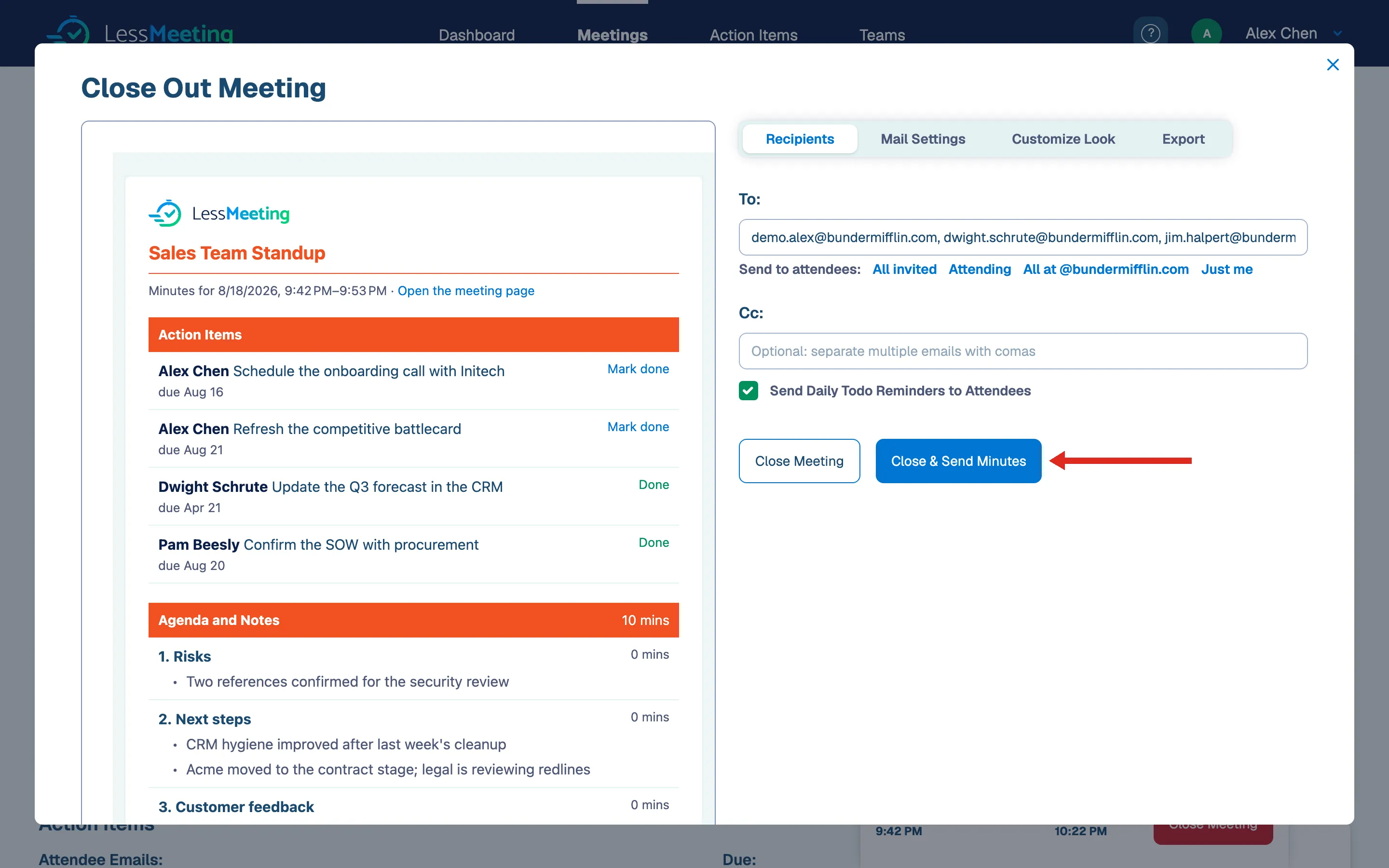
Press Close & Send Minutes to finish, or Close Meeting to close it without sending. You can still edit notes, attendance, and action items afterward.
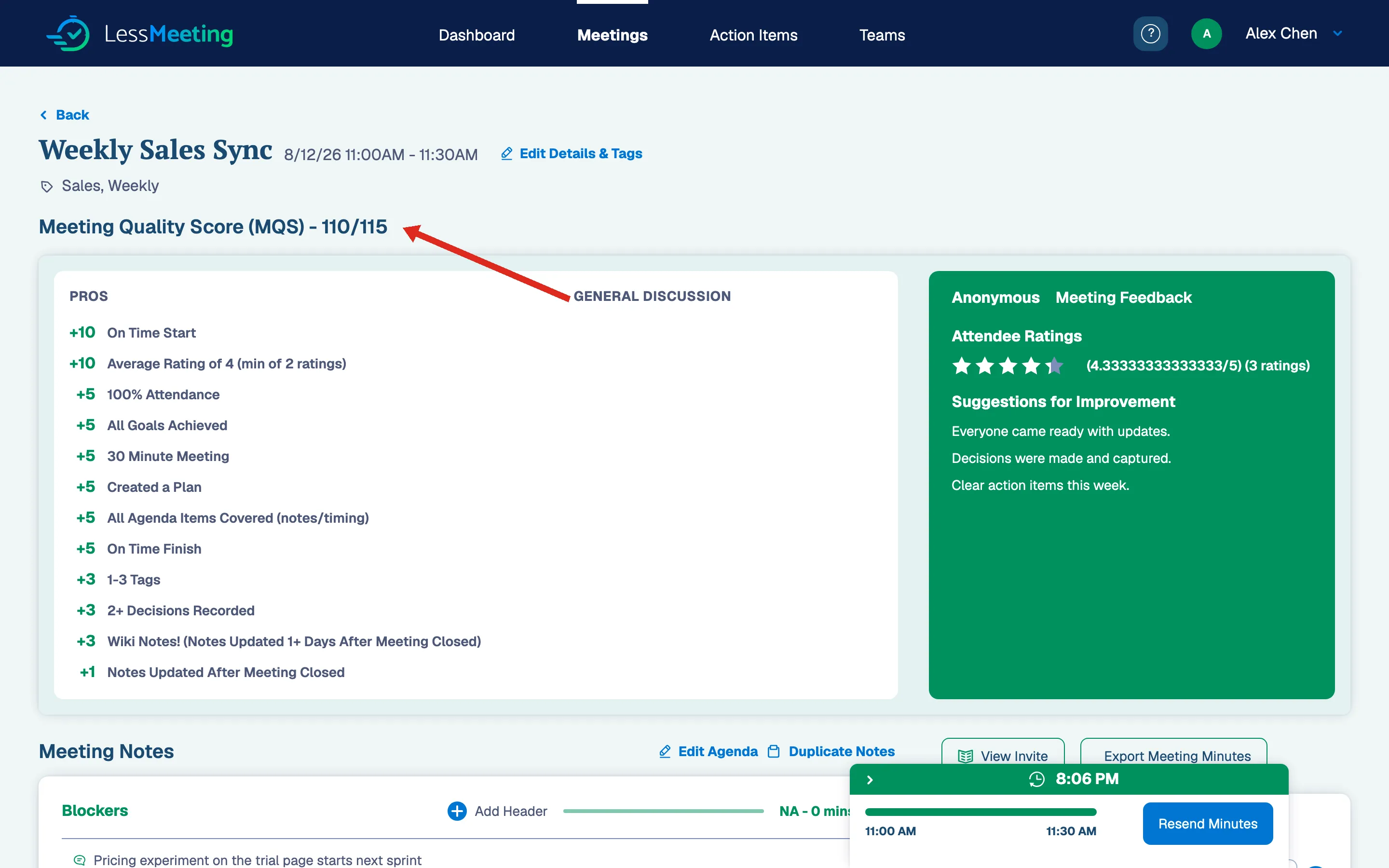
Meeting Quality Score (MQS)
Once a meeting is closed, a Meeting Quality Score is calculated and shown on the meeting page. It breaks down what helped and hurt the meeting (starting on time adds points, ending late takes them away), so you can see how it measured up against best practices and where to improve.
Export Meeting Notes
After closing, use Export Meeting Minutes (top right of the meeting page, or the Export tab in the close-out dialog) to save the notes as PDF, Word, or Markdown to distribute or post elsewhere.
Track Action Items
Action items from your meetings collect on the Action Items page. You’ll see what’s still open and when it’s due, what’s completed, and items owed to you from meetings you attended.
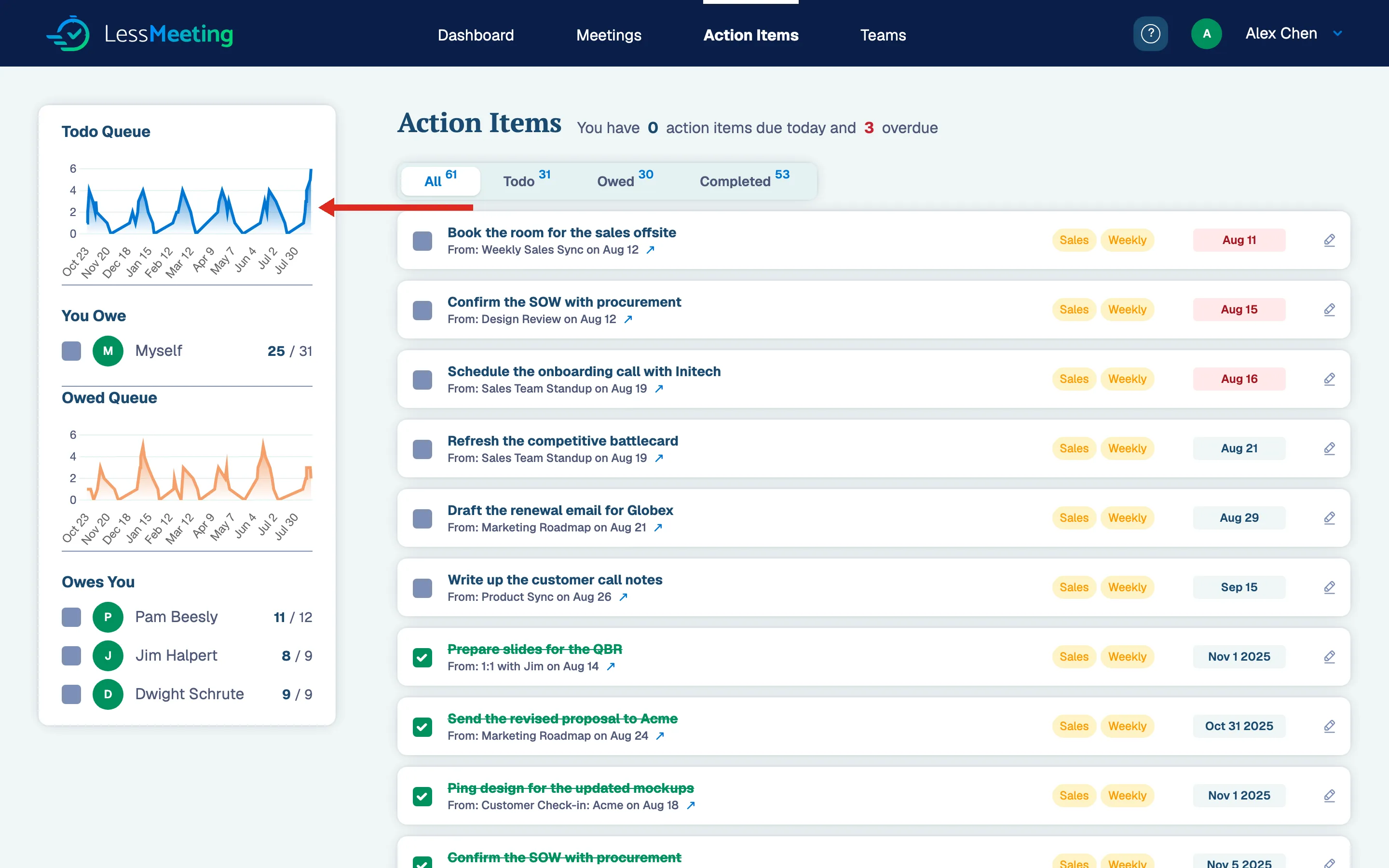
Action items assigned to anyone with a Less Meeting account also sync with Outlook and Google Workspace tasks. Check one off in Outlook or Google and it syncs back to Less Meeting automatically.